
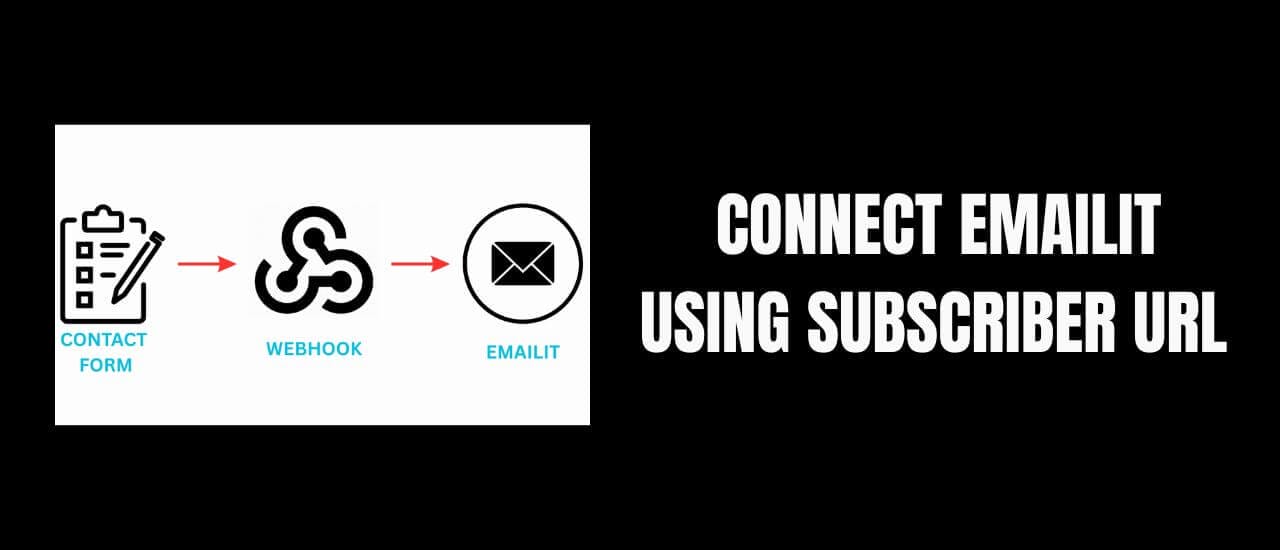
EmailIt is one of the most affordable email marketing platforms around — but doesn’t have built-in forms just yet. If you want to connect to webhooks using the Subscribe URL, here is a quick guide to get you started.
In this tutorial, you’ll learn how to connect Contact Form 7 (a free WordPress plugin) to Email It using IFTTT. This lets you collect emails effortlessly and take advantage of EmailIt’s lifetime deal, even before their form builder is launched…
🛠️ What You’ll Need
WordPress site
Contact Form 7 plugin (free)
CF7 to Webhook plugin (free)
IFTTT or other webhook tool (e.g., Taskade, Pabbly, etc)
EmailIt Lifetime Deal or Subscription
🔧 Step-by-Step Setup
1. Install Contact Form 7 and CF7 to Webhook
Go to Plugins > Add New
Search and install Contact Form 7
Then install CF7 to Webhook – this lets you send form data to a webhook
2. Create a New Form
Replace the default fields with this simplified version that Email It can understand:
<label> Your Email
    [email* email autocomplete:email] </label>

<label> First Name
    [text* first_name autocomplete:name] </label>

<label> Last Name
    [text* last_name autocomplete:name] </label>

[submit "Submit"]
✏️ These fields must use the exact identifiers: email, firstname, and lastname.
3. Fix Validation Issues
Switch to the Mail tab and update the identifier from “your-email” to “email”
This ensures the form doesn’t break due to mismatched identifiers.
🔗 Setting Up the Webhook with IFTTT (or Alternative)
You can choose from a number of Webhook options. I recommend the following:
If you’ve chosen IFTTT, here’s how to set it up:
1. Create a new Webhook Applet
2. For IF THIS, search for Webhooks, and use “Receive a web request with JSON” as the trigger
3. Choose a name for your automation without any spaces
4. For THEN THAT, search for Webhooks, and choose “Make a web request” as the action
5. Fill in the required info using the info below
🌐 Configuring the Webhook to Work with EmailIt
1. Get Your Subscribe URL In Email It
Go to Audiences
Click on the Subscribe URL
Copy it — you’ll use this as the webhook destination
Set Webhook Method and Headers
Method: POST
Content Type: application/json
Headers:
Authorization: Bearer YOUR_API_KEY
Content-Type: application/json
🔐 Create your API key under Credentials in Email It. It’s only shown once, so copy it immediately.
3. Configure the JSON Body
Click on Ingredients and choose {{JsonPayload}}
Hit Create and copy the final Webhook URL.
🔁 Connect the Webhook to Contact Form 7
Go back to your Contact Form
In the Webhook tab, paste your Webhook URL
Save changes
Then place your form shortcode on a page and publish it!
This webhook integration works best when paired with a well-configured contact form on your site — for reviews of the leading WordPress form builders, see our Formaloo review and our Piotnet Forms review. For the full WooCommerce store setup that this kind of email capture supports, see our complete WooCommerce guide.
Last Updated on May 23, 2026

With more than fifteen years of blogging experience, I have contributed to numerous respected websites and publications. I am also the author of multiple books that have sold thousands of copies and currently lead a successful digital sales business. Writing remains my core passion, and I am dedicated to creating meaningful stories and insights that resonate deeply with readers.