
WooCommerce run on over 36% of all online stores. It’s free, open-source, runs on WordPress, and can handle everything from simple blogs to complex physical product catalogues. It also have no transaction fees beyond what your payment processor charges.
For anyone that wants a low cost alternative to Shopify, you can’t go wrong with Woocommerce. More recently, they’ve made some important changes that have made customizing Woocommerce much easier. It’s now finally moved into the current decade and can look just as good, if not better, than a Shopify store, but with many more features.
WooCommerce vs Shopify and Other Platforms
The two biggest e-commerce platforms are WooCommerce and Shopify. Here’s an honest comparison of the two:
| Feature | WooCommerce | Shopify |
|---|---|---|
| Monthly cost | $0 (hosting extra) | $39–$399/month |
| Transaction fees | 0% (payment processor only) | 0–2% (plan dependent) |
| Customisability | Very high | Moderate |
| Ease of setup | Moderate | Easy |
| Digital products | Excellent | Good |
| SEO control | Full control | Limited |
| Ownership | You own everything | Platform-dependent |
For most digital product sellers, WooCommerce is the way to go for ost and control alone. Shopify is easier to setup initially but becomes very expensive, very fast. Every additional idea that you have to improve your store comes with a monthly cost for that particular plugin. For free Shopify alternatives reviewed in detail, see: Top 3 Free Shopify Alternatives.
Other e-commerce platforms worth checking out:
- Dukaan: Simple setup, mobile-first. See our review: Dukaan Review
- Selldone: Good for both digital and physical goods. See our review: Selldone Review
- Printful integration: For print-on-demand sellers — works with or without Shopify. See: Can I Use Printful Without Shopify?
Choosing the Right Hosting for WooCommerce
While WooCommerce doesn’t charge you anything, you do need to have your own hosting to run it on. For many people that already have sites online, this isn’t a big deal because we simply add it onto hosting that we’re already paying for for our other sites. But for newcomers, it can initially feel expensive to pay monthly hosting costs when you don’t have any money coming in yet.
When starting out and still testing if you have a viable product, shared hosting is fine to use. A few sales a month is not going to put any strain on your site. However, once you start making consistent sales – a VPS is required to avoid needing to share resources with other sites. You will need to transfter your site over to the new VPS (which will mean a few hours of downtime for your site), which is a fair tradeoff for saving money during the first few testing months.
We’ve got some great options for shared hosting and VPS hosting below:
See our detailed guides:
- The Best Server for WooCommerce – our top-tested recommendations
- Best Cheap Dedicated Web Server – for stores with higher traffic
- Cheapest Way to Host WordPress – budget-friendly starting options
- Best Hosting for SEO on a Budget – if organic traffic is a priority
WooCommerce Minimum Hosting Requirements
- PHP 8.0 or higher
- MySQL 8.0 or MariaDB 10.4+
- HTTPS / SSL certificate
- At least 512MB RAM (1GB+ recommended)
- WordPress 6.4 or higher
Setting Up WooCommerce
Step 1: Install WordPress and WooCommerce
Install WordPress on your host (most hosts have a one-click WordPress installation). Please note that WordPress.com is a monthly paid hosting, but installing WordPress on your own hosting is free. Then install the WooCommerce plugin from the WordPress plugin directory. Run the setup wizard, which will walk you through setting it up in full – store location, currency, and payment method selection. It’s best to watch a Youtube video from someone in your country to see how they set things up.
Step 2: Configure Your Store Settings
Min settings that you should configure immediately:
- General: Store address, currency, tax settings
- Products → Downloadable products: Set “File download method” to Force Downloads (prevents direct URL access to your files)
- Accounts & Privacy: Enable guest checkout, configure account registration options
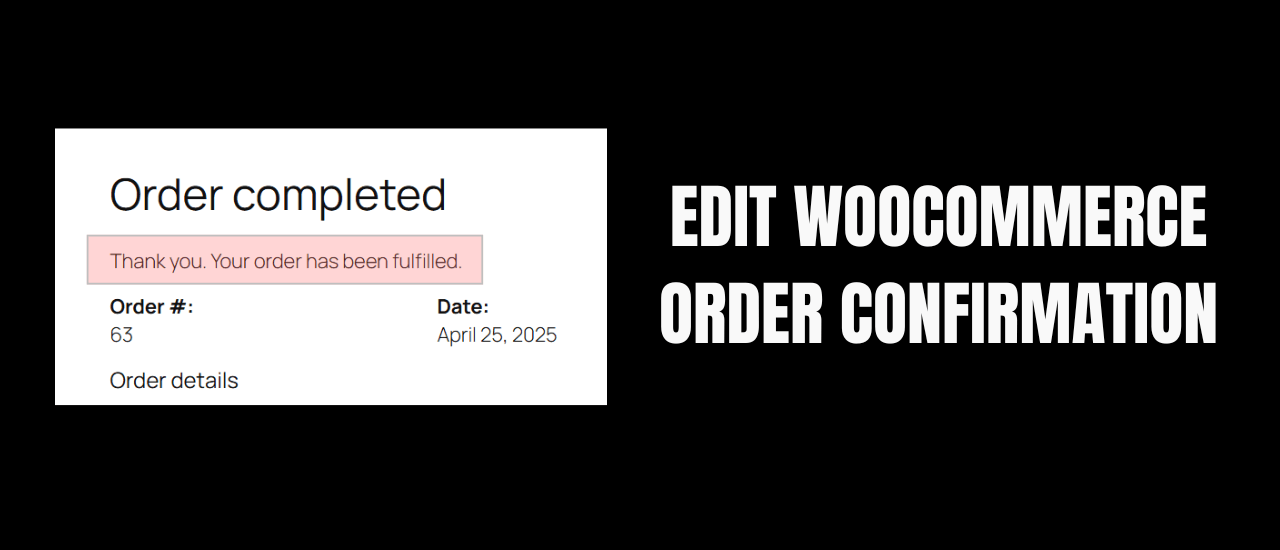
- Emails: Customise order confirmation and download delivery emails. To change the default “Your order has been received” message, see: How to Change the WooCommerce Thank You Page Message
Step 3: Set Up Payment Processing
See the dedicated Payment Processing section below.
Selling Digital Products on WooCommerce
WooCommerce handles digital product delivery natively, so you don’t need any extra plugins for basic file downloads. When a customer purchases a digital product, WooCommerce will automatically show them their download link on-screen, and send them a copy of their download link in an order confirmation email.
Creating a Digital Product Listing
- Head over to Products → Add New
- Name your product and write a detailed description (this is your SEO content)
- Under “Product Data,” select “Simple product” and check “Virtual” and “Downloadable”
- Upload your file(s) in the Downloadable Files section
- Set download limit (optional) and download expiry (optional)
- Set your price and add a product image
- Add to appropriate categories and add tags
- Publish
Managing Download Links
The one issue I have with Woocommerce digital products is that changing anything link-related in your product section will invalidate previous customer links. For example, if you go to a product and delete the current link to replace it with another, all customers links that have been sent become invalid. Customers are not redirected to the new updated product. You can avoid this by using a plugin called “Media Replace” to swap out product links without affecting your customers.
And if you’ve already updated some product links without realizing it, here are the ways I used to fix it:
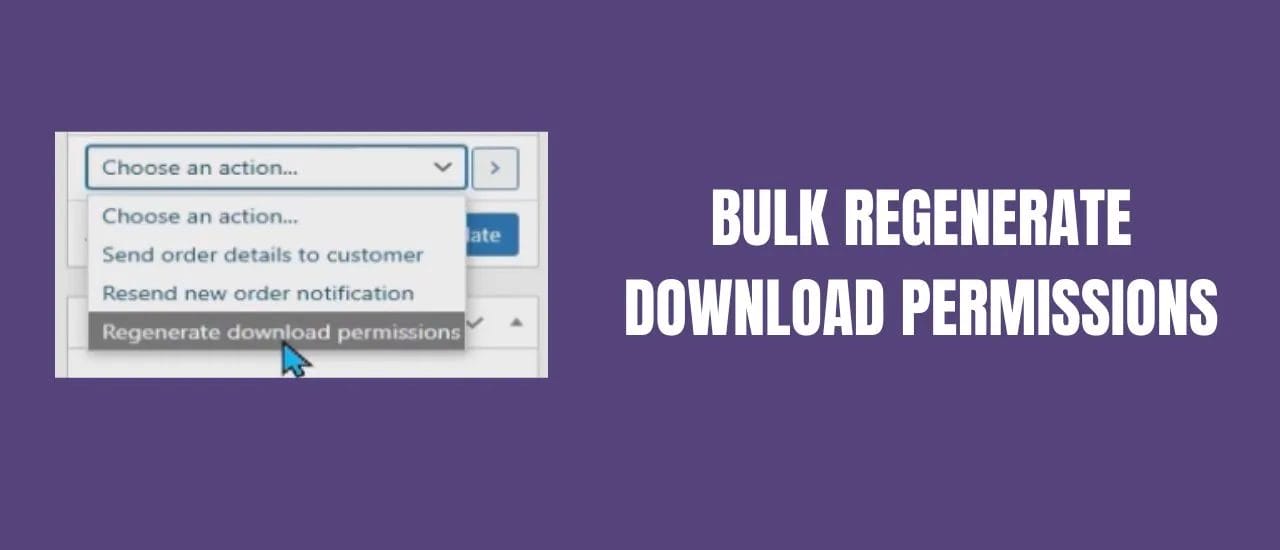
- Bulk Regenerate Download Links in WooCommerce — fix expired links in bulk
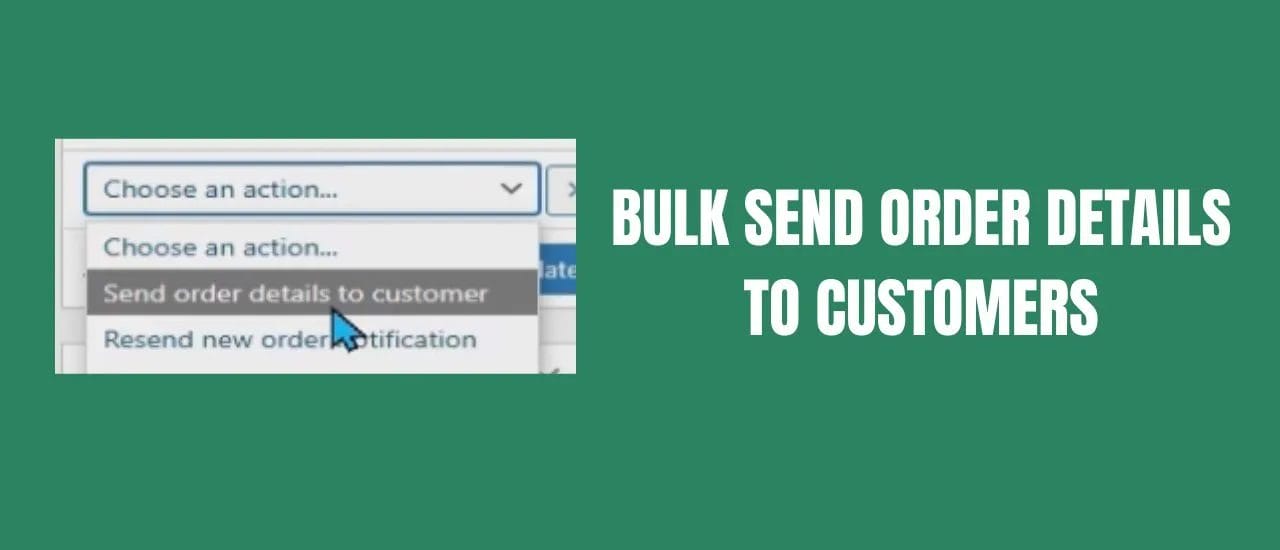
- Bulk Send Order Details to Customers — resend purchase confirmations to multiple customers at once
Payment Processing Setup
WooCommerce supports payment via many, many different payment processors. Depending on the country you’re in, you’ll choose different payment processors. I’m just going to focus on the 2 biggest options.
Stripe (Recommended)
Stripe is the best payment processor for most WooCommerce stores as it handles credit cards, Apple Pay, Google Pay, and buy-now-pay-later options. They have a flat-rate fee (typically 2.9% + 30¢ per transaction in the US). Install the official “WooCommerce Stripe Payment Gateway” plugin to get started receiving payments. You’ll want to use a Youtube guide to setup your actual Stripe account on their website as it is confusing.
If you’re in South Africa where Stripe isn’t available, see our guide: 3 Stripe Alternatives in South Africa.
PayPal
PayPal is another huge payment processor that’s available in most countrie around the world. Again, I recommend using a Youtube video from your country to show you how to setup everything up correctly. I will advice you not to use the official Paypal plugin in WordPress, as it has never worked very well. Any other third party PayPal plugin will work much better.
Setting Up Webhooks and Email Marketing
For connecting WooCommerce to email marketing systems and automating subscriber capture, see our tutorial: EmailIt Webhook Tutorial – Contact Form 7 to Email List.
Essential WooCommerce Plugins for Digital Sellers
| Plugin | Purpose | Cost |
|---|---|---|
| WooCommerce (core) | E-commerce foundation | Free |
| Stripe/PayPal | Stripe payment processing | Free |
| Yoast SEO or Squirrly SEO | Product page SEO | Free Tier |
| W3 Total Cache | Site speed and caching | Free |
| Smush or ShortPixel | Image compression | Free tier |
| Contact Form 7/Piotnet Forms | Contact forms, lead capture | Free Tier |
| UpdraftPlus | Backup your site | Free Tier |
| Suremail SMTP | Send emails | Free |
| Zero Spam for Wordpres | Block spam emails and reviews | Free Tier |
| Ilmenite Cookie Consent | Cookie Notice (Light) | Free |
For contact form and regular form plugin reviews: Piotnet Forms Review and Formaloo Review.
SEO for Your WooCommerce Store
Your WooCommerce store competes for Google traffic just like any other blog post. Key SEO elements for product pages:
- Product titles: Include the main keyword – “Large Print Sudoku Puzzle Book for Seniors” not “Book-1234-v2”
- Product descriptions: Write at least 300 words of unique, keyword-rich content per product page. Do not use AI-written descriptions.
- Product images: Use descriptive alt text on every image. These are for accessibility, so write them with a clear explanation of what the image is for blind users to better understand your product page.
- Schema markup: WooCommerce automatically adds product schema – just make sure that your SEO plugin is configured properly
- Internal links: Link related products to each other and from blog posts to product pages
For our complete SEO guide: How to Get Your Website to the Top of Google. For WooCommerce-specific hosting performance: Best Server for WooCommerce.
Frequently Asked Questions
Is WooCommerce free?
The WooCommerce plugin itself is free. You’ll only need to pay for hosting. You can start with a cheap shared hosting provider, but once you have customers purchasing products, it’s best to move to a VPS.
Can WooCommerce handle many simultaneous downloads?
Yes, especially when on a good hosting plan. For stores expecting high download volumes, use a CDN (Content Delivery Network) like Cloudflare to serve files. This offloads bandwidth from your server. Most managed WordPress hosts include Cloudflare integration.
How do I prevent digital product piracy on WooCommerce?
Set “File download method” to “Force Downloads” in WooCommerce settings. Set download limits per purchase (e.g., 3 downloads). You can also use expiring download links. These measures prevent casual piracy but no system can eliminate it entirely.
What’s the best way to accept payments if Stripe is unavailable in my country?
See our guide on Stripe alternatives for South Africa. PayPal is available in most countries as a fallback, and Wise (formerly TransferWise) is an excellent option for receiving international payments.
For broader e-commerce strategy, see: How Independent Sellers Can Transform Their E-Commerce with Digital Tools. And for the SEO that drives traffic to your store: How to Get Your Website to the Top of Google.
Last Updated on May 23, 2026

With more than fifteen years of blogging experience, I have contributed to numerous respected websites and publications. I am also the author of multiple books that have sold thousands of copies and currently lead a successful digital sales business. Writing remains my core passion, and I am dedicated to creating meaningful stories and insights that resonate deeply with readers.